Obsidian for Writers

This is just a quick beginner's primer for fellow writers who are "Obsidian curious" but perhaps need a little help to get started. It's super basic and focused specifically on the potential needs and interests for practitioners of creative writing.
But first...
Why Obsidian?
I'm so glad you asked! Obsidian is, on its surface, a simple application to take notes and organize them. I've been using it since it first launched and immediately fell in love with it. In the years since, all the stuff I loved then is either still there, or improved, and a whole bunch of new stuff has been added—while not bogging it down into something that sacrifices its core simplicity.
Here are some key things that make it great:
It's free
The core feature set is completely and forever free as long as you are using it for yourself. There is a commercial license but that's not for lone writers like us. I did pay the optional "Catalyst" license because I wanted to help make sure this app continues to develop and grow, but honestly all that really gets you is access to the private support forums and early beta updates. I also pay for Obsidian Sync, but that's because it's cheaper and better encryption than alternatives like DropBox.
It's private
No big creepy tech company will scrape your stuff for their voracious LLM training data needs. The files lives on your computer or device and nowhere else unless you use something to sync them to a different device. If you pay for the built-in Obsidian Sync, the files are end-to-end encrypted, meaning even if the data is intercepted, they won't be readable. Not by the makers of Obsidian or anyone else.
It's future proof
Obsidian doesn't bury your files in some proprietary database format that only it can read. It puts everything in regular ole' text files, which is the most basic digital format that has existed since the invention of digital data, and will continue to exist for as long as digital data does. Any application that can read text, can read a text file. So if Obsidian ever stops getting developed, or you decide you like a different application more, it's not a huge pain to move all your stuff somewhere else.
It's extensible
The core feature-set for Obsidian is great, but there is also a vast, well-supported community of developers who also love Obsidian. Those devs, bless their souls, make all sorts of plugins and themes to customize both the function and appearance of the application. Part of Obsidian's magic is just how well it can accommodate so many different workflows.
It's everywhere
Obsidian is available for Windows, macOS, Linux, iOS, and Android. You can use the aforementioned Obsidian Sync, or services like DropBox or iCloud to sync them between all those devices. It's truly platform agnostic. My current setup runs it on CachyOS, MintOS, iOS, and whatever Android flavor Boox uses. I challenge you to find a jankier setup, and yet it syncs between them flawlessly. Because again, it's just text files.
Basics
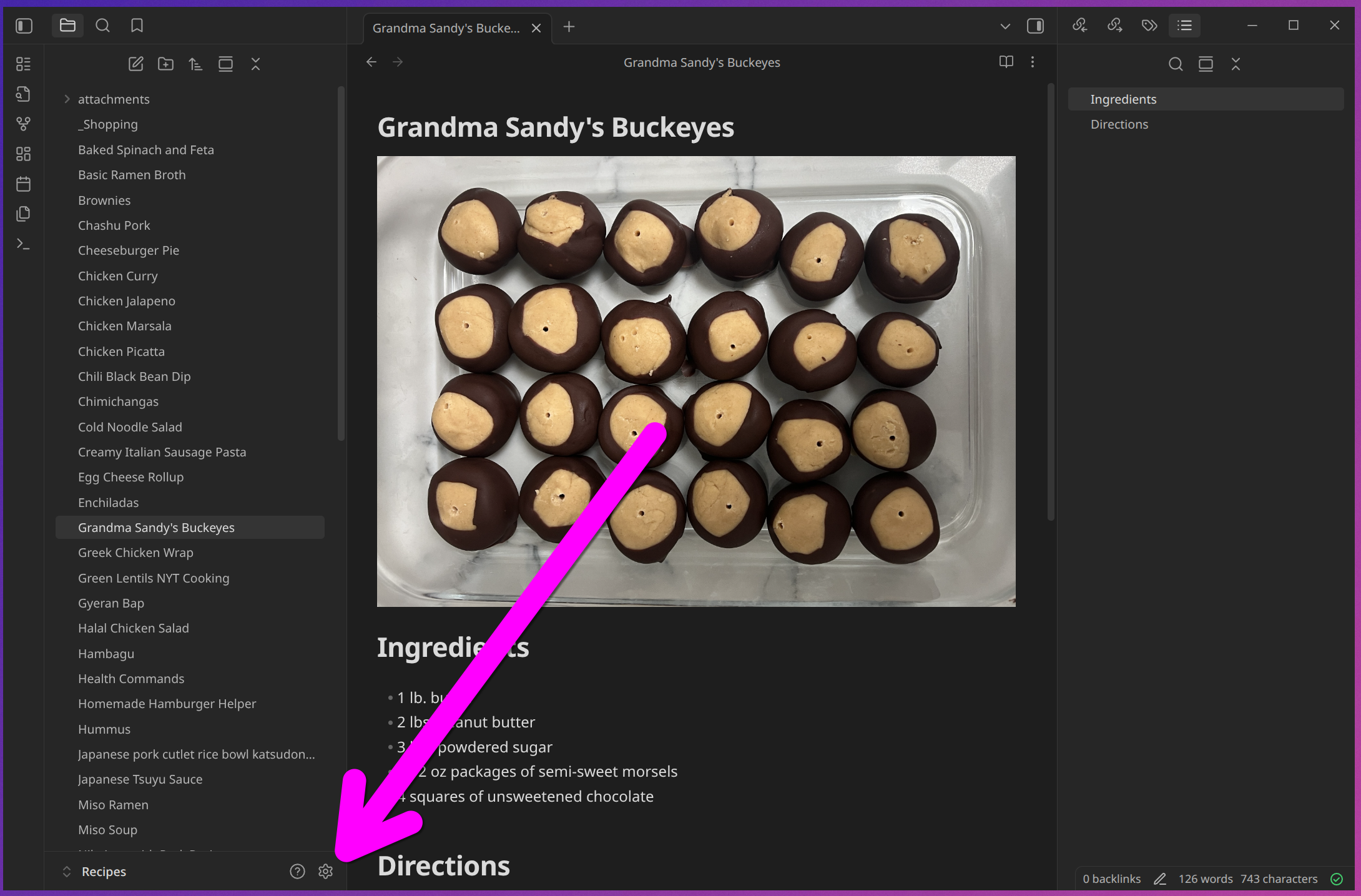
I'm not going to show many screenshots from my main Obsidian vault because it's customized to all hell and I don't feel like blurring out all the names of my works-in-progress. Thankfully Obsidian supports multiple vaults, so you get to see my recipe vault instead!
Layout
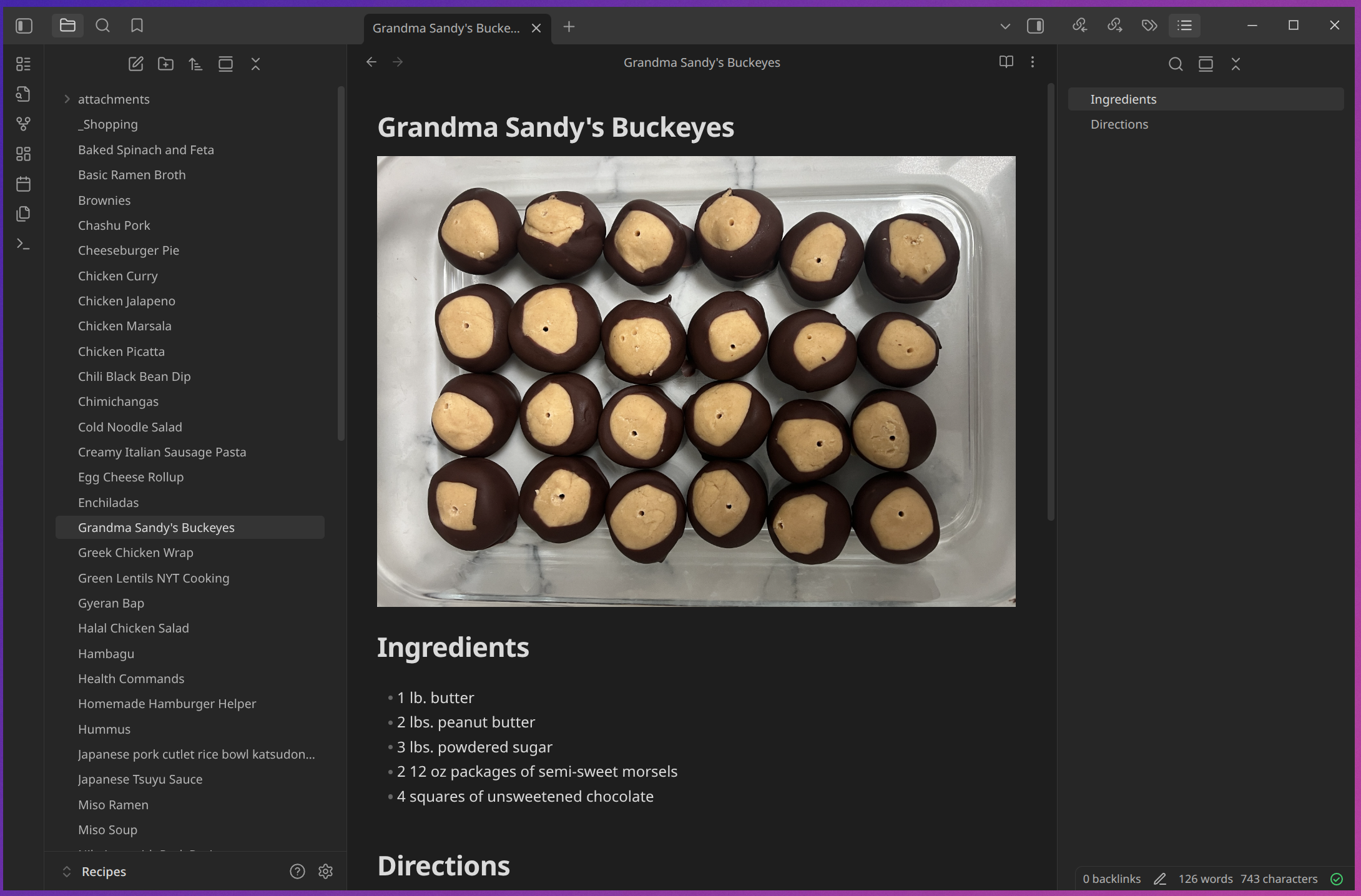
There are four parts to the UI:
- Ribbon: a strip on the far left, the ribbon shows icons for specific views and functions. Hover your cursor over the icon to see the name. Click on one to activate. Can be customized.
- Left column: Most often shows the list of files and folders in your vault. In addition to the file structure view, there's also search view and bookmark view. You can also click icons to create a new note, new folder, sort, etc.
- Center column: This is where you actually write.
- Right column: This is the most dynamic column. Currently you're looking at the table of contents (only two headers in the above document), but depending on the plugins you have enabled, you might see a calendar, todo list, list of files that link to this file, tags, or really whatever you want. The options are vast.
If you're like me, you prefer a clean workspace. Rest assured that the ribbon and side columns can all be hidden with a single click or keyboard shortcut when it's time to do Serious Writing.
Basic Formatting
I mentioned that all these files are just plain text files. And yet in the above screenshot, you saw formatting like headers, bullet points, and images. That's because Obsidian uses the popular markdown format invented by John Gruber. If you spend a lot of time in Discord, you probably already know how to use it. I'll avoid getting too far into the weeds here, so all you need to know as a writer is this:
- Leave a blank space between paragraphs
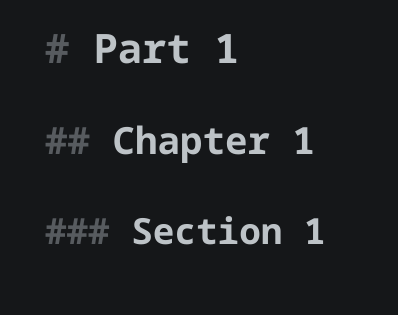
- Just like web pages or properly formatted Word Docs, files are structured with headers. Header 1 is the highest and largest, with higher numbers nesting inside each other, getting smaller as they go. I use these to indicate part breaks, chapter breaks, and section breaks in novels, or to indicate page and panel structure in comic scripts. To indicate a header, precede it with "#." The more hashes, the higher the header number, like so:
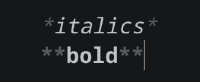
- Wrap a word or phrase in "*" to indicate italics, and "**" to indicate bold.
- To add an image, drag it from wherever you have it saved into wherever you want it on the doc. The image file will be imported into your vault, and shown as an embedded link in the document.
And really, that's all you need for writing a book, isn't it? If you want the full list of markdown formatting options, check out Obsidian's online help. By default, Obsidian only shows that markup when your cursor is active on that line. Once you move to the next line, the format remains but the markup itself is hidden from view to present a cleaner look. If you find that confusing, you can turn the behavior off in the settings.
Core Plugins
Obsidian comes with a lot of great features out of the box. I won't get into too much here, but for writers, you might be most interested in these.
Daily Note
This is a simple and easy way to keep a diary. Just click the Daily Note icon in the ribbon, and Obsidian will automatically create a new note each day, using that date as the file name.
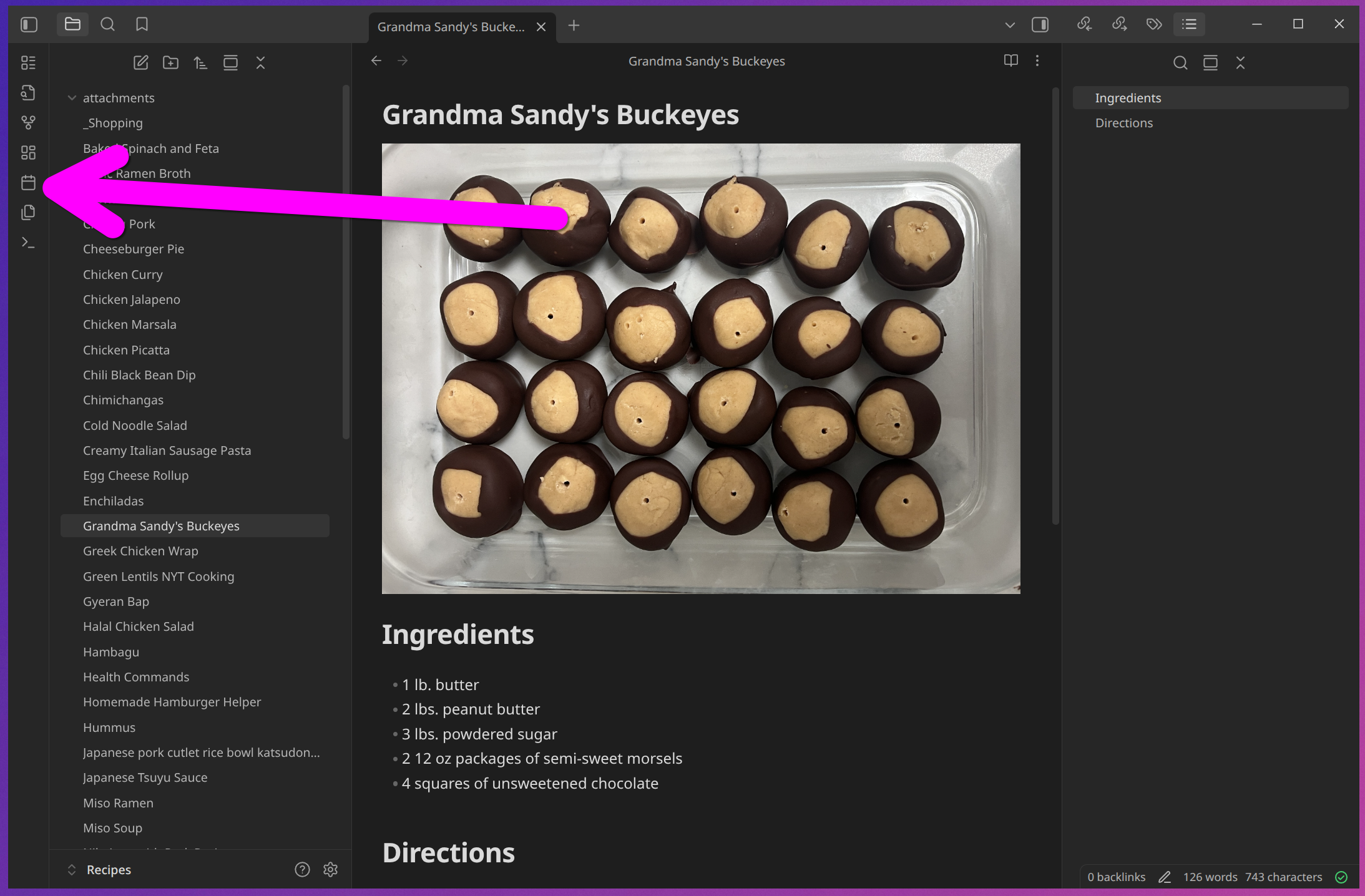
If you want to go back to that daily note later on the same day, you can simply click the icon again. If you've already created a file for that day, it will just take you there instead of creating a new one.
You can customize the behavior of the note creation quite a bit. You can have files automatically sorted into folders. For example, I have a folder called "Journal" all my daily notes go into, and then it also automatically creates subfolders for each year and month. You can also have it create the note using a template file you've made. This is handy if you have a habit checklist or something you want to include every day in your journal entry.
Canvas
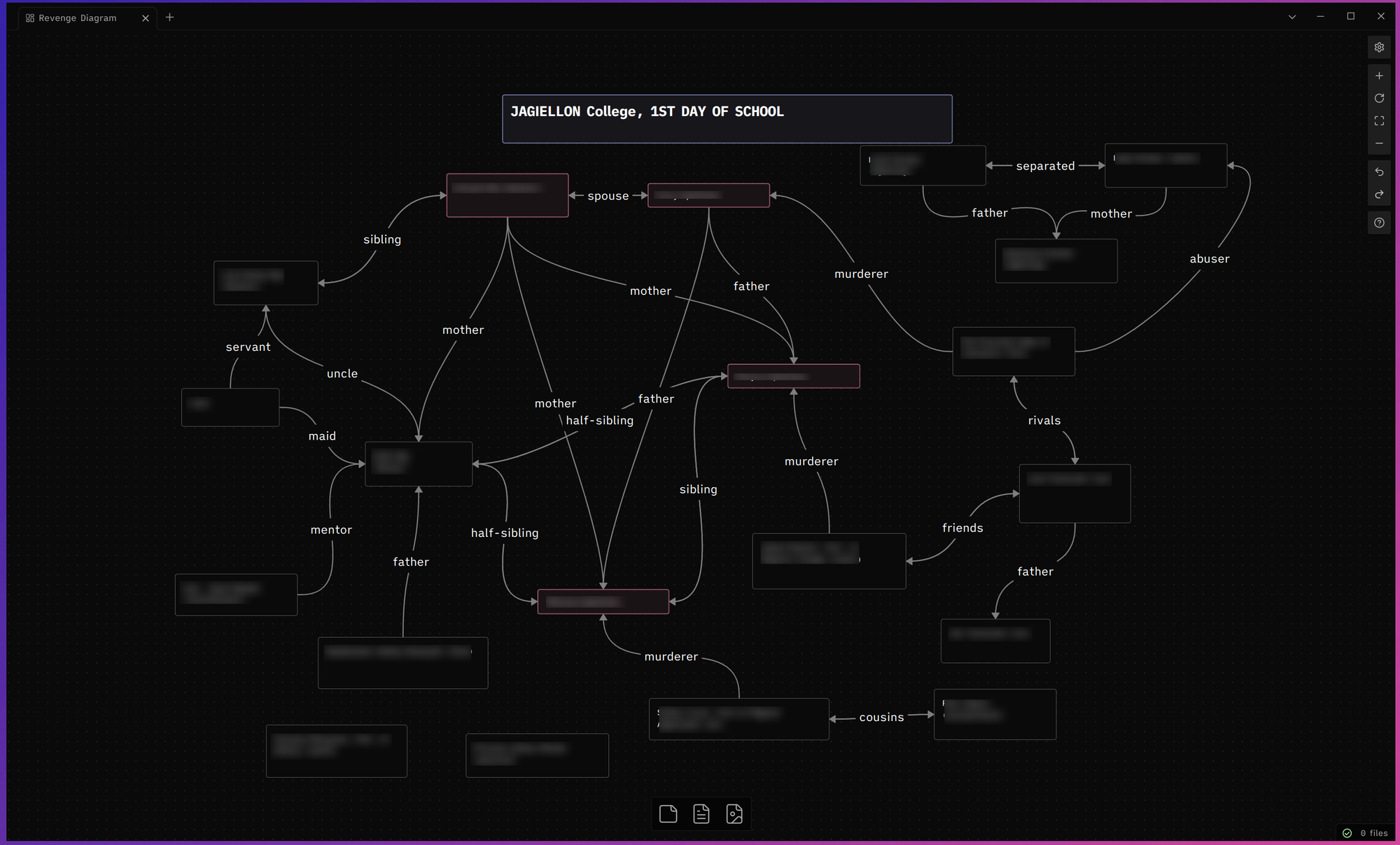
This is essentially a flow chart that is somehow magically made using a text file. How is this possible??? I just told you, it's magic. Anyway, when I'm working on a novel with a complex plot like a mystery and/or family drama hierarchy, I sometimes find this sort of visual brainstorming and organization helpful. Just click the canvas icon on the ribbon like above to start a new canvas, then start dragging around squares, labeling them, and connecting them like so:
Backlinks and Graphs
Obsidian offers a way to connect files to each other similar to Wikipedia, so you can be writing in one file and easily link to and reference another one. The other file doesn't even need to exist yet. You can just link some text, and then when you click the link, Obsidian will create a new file using that text as the file name.
Use the Backlinks view in the right column to view a list of files connected to the current file. Even better, there is a graph view you can access from the ribbon that shows you how all your files are connected.
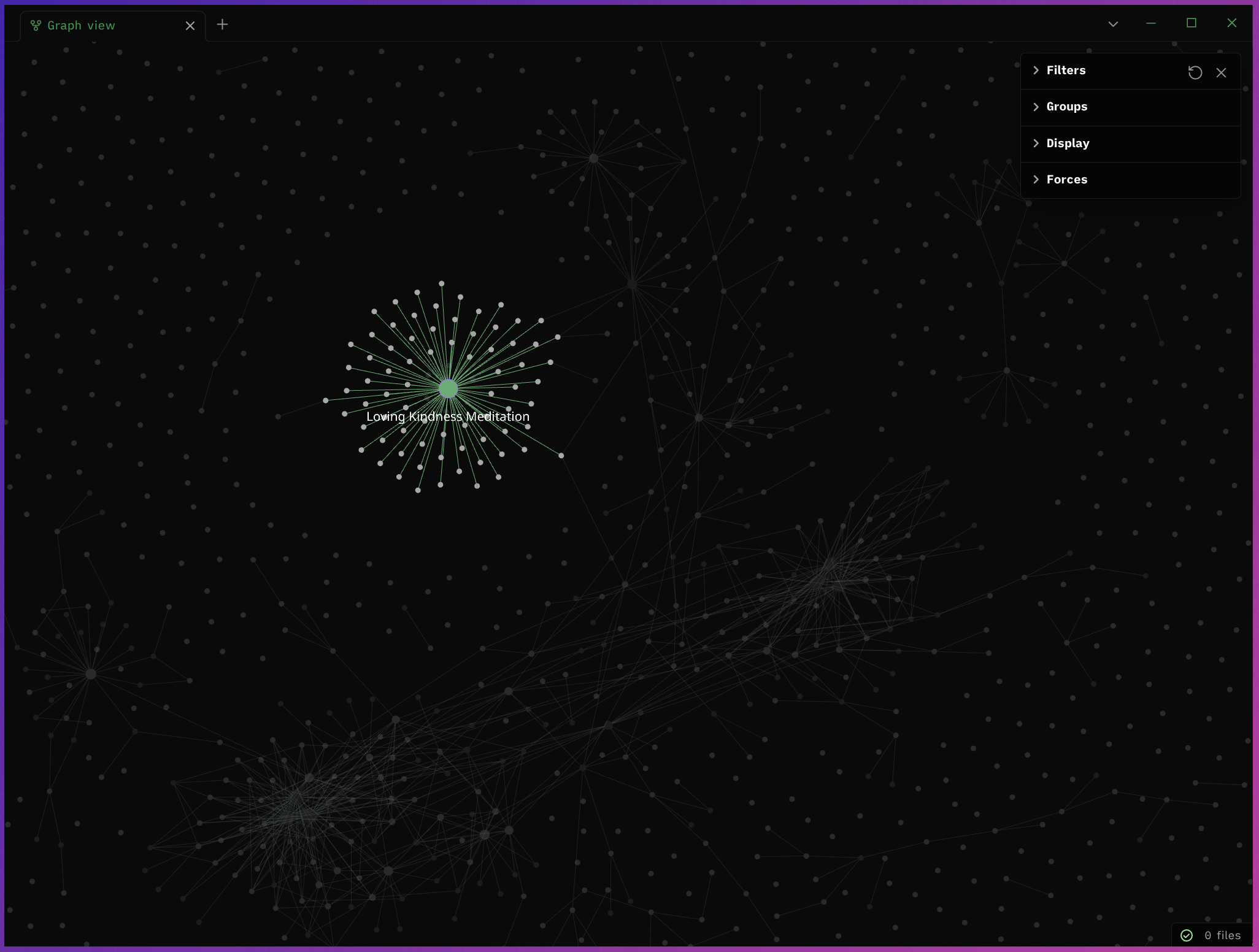
- Hover over a cluster to see the file that connects all the other files.
- Filter, zoom, and otherwise tweak what you're seeing in the drop-down menus in the upper right. For example, maybe you only want to see a specific topic, or set of files.
- Click a point to open the file.
In my experience, graph view can show an intersection in your research that you would otherwise never have noticed. Once you've amassed a bunch of your own interconnect files, give it a try!
Customization
Where Obsidian really shines is when you start customizing the hell out of it to suit your hyper-specific needs and tastes. To do this, you'll need to access the settings interface. One way to do this is by clicking the settings icon.
Community Plugins
Community plugins allows you to add features and functionality made by other Obsidian users. There are some inherent risks in adding stuff made by randos on the Internet, so that ability is not turned on by default. Although it's also worth pointing out that even if a poorly made plugin jacks up your Obsidian vault, it won't affect your actual file content, and since it's just text files there won't be any problems opening them elsewhere.
To enable community plugins:
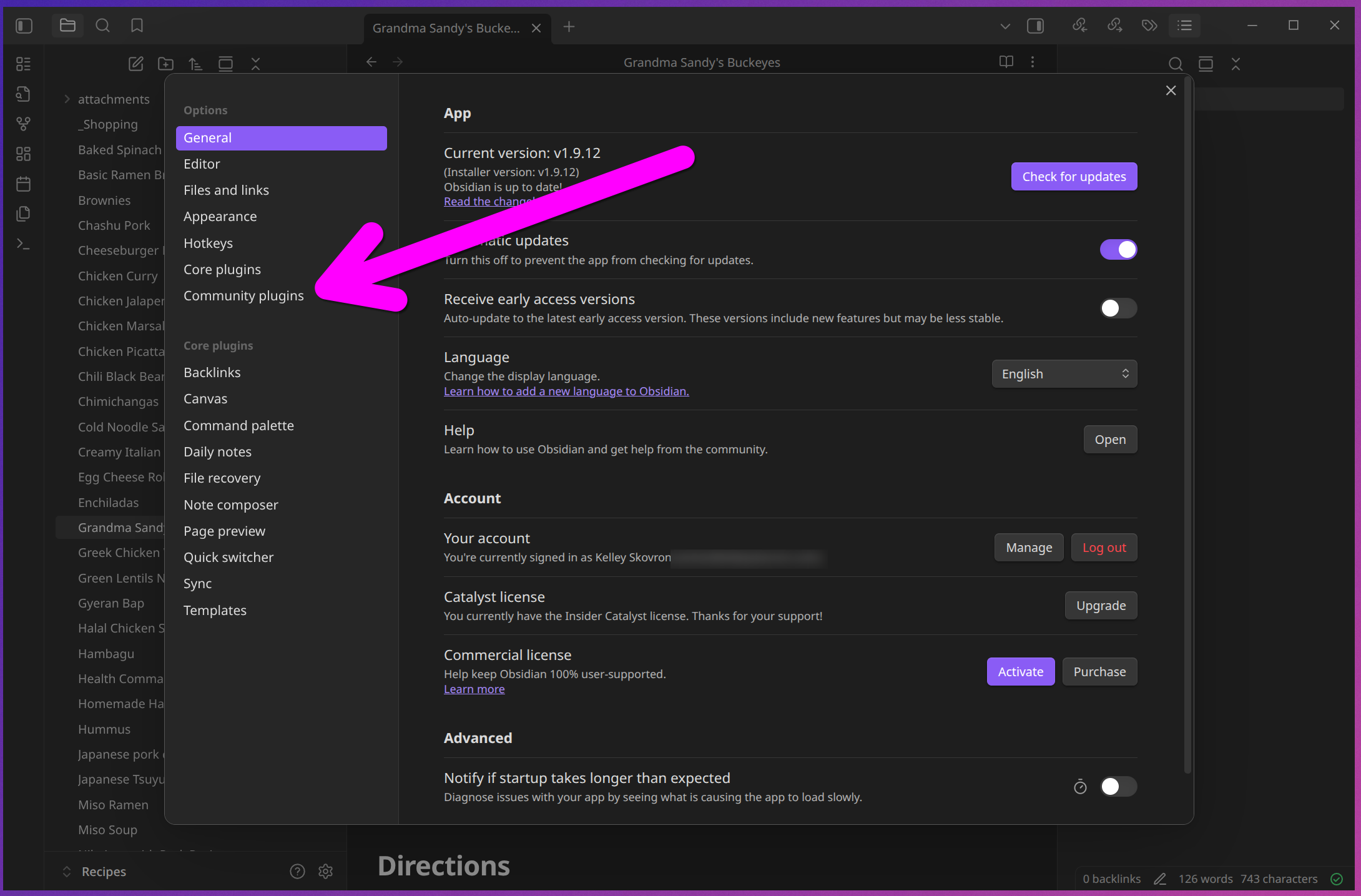
- Click the Community plugins option in the settings interface.
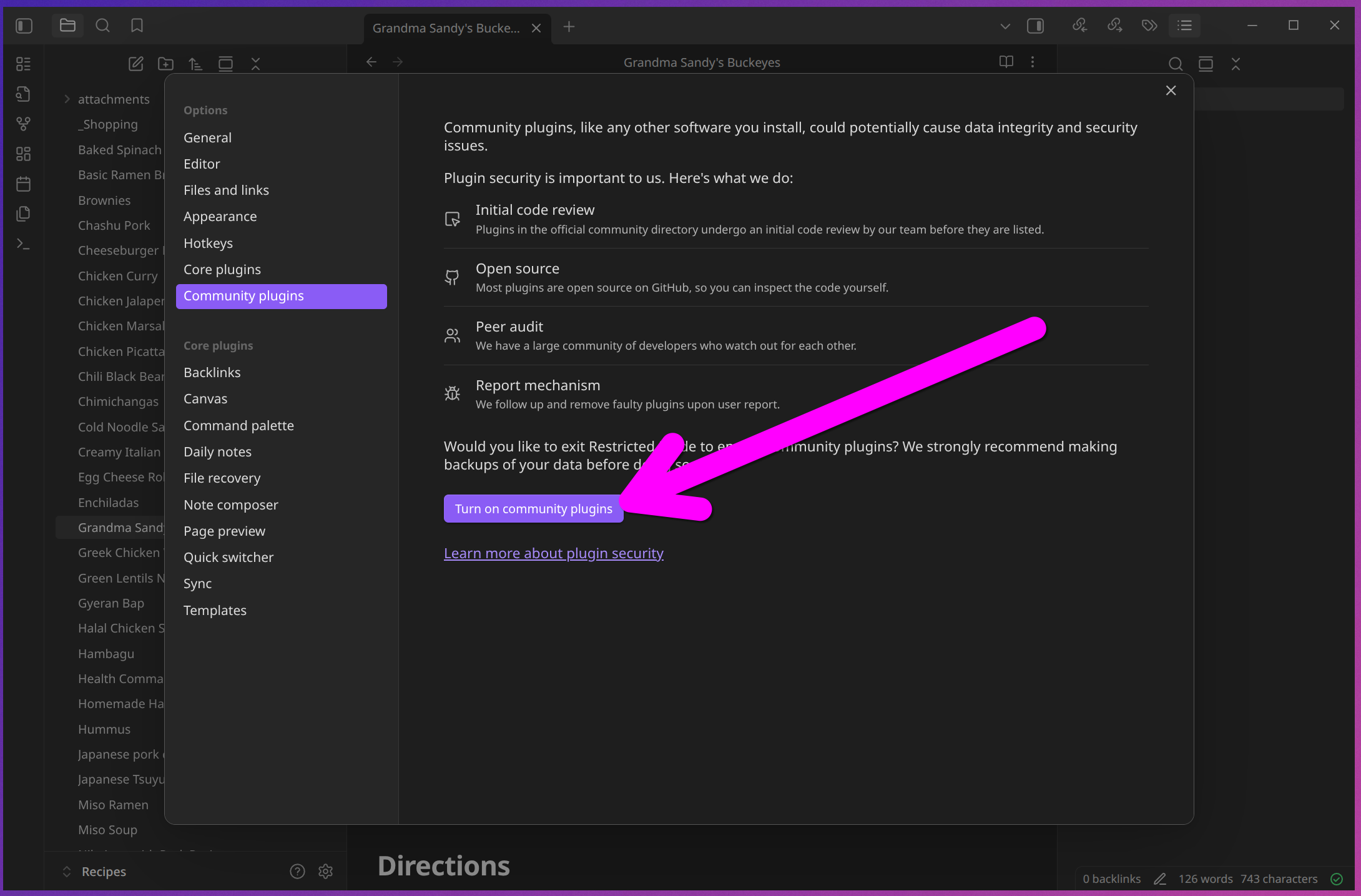
- Click Turn on community plugins.
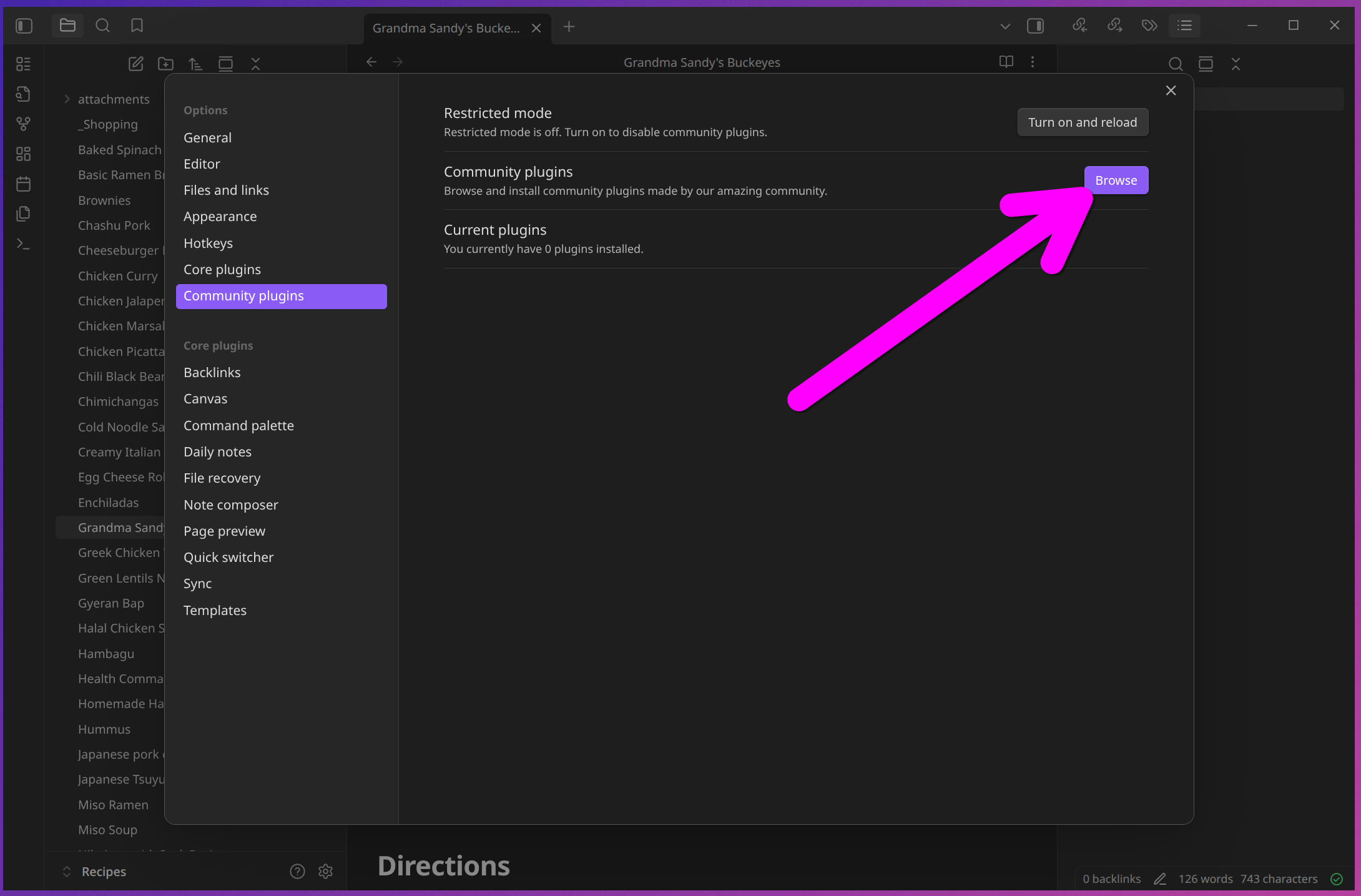
- Click Browse to look for plugins.
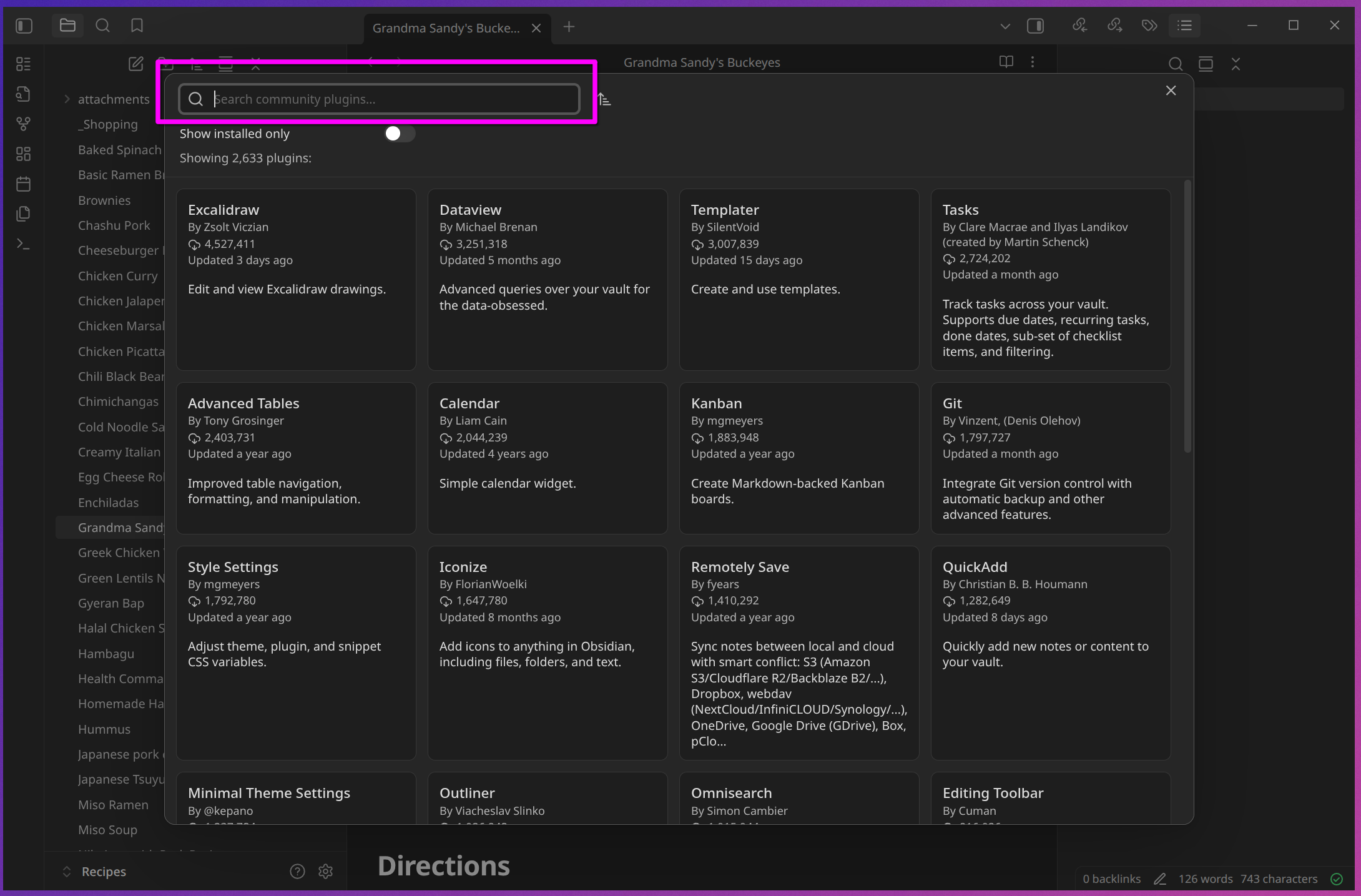
- There are a lot of plugins, so it's best to search for what you're looking for. In this example we're going to search for a way to export our plain text files into a Word Doc that an editor will accept for submission.
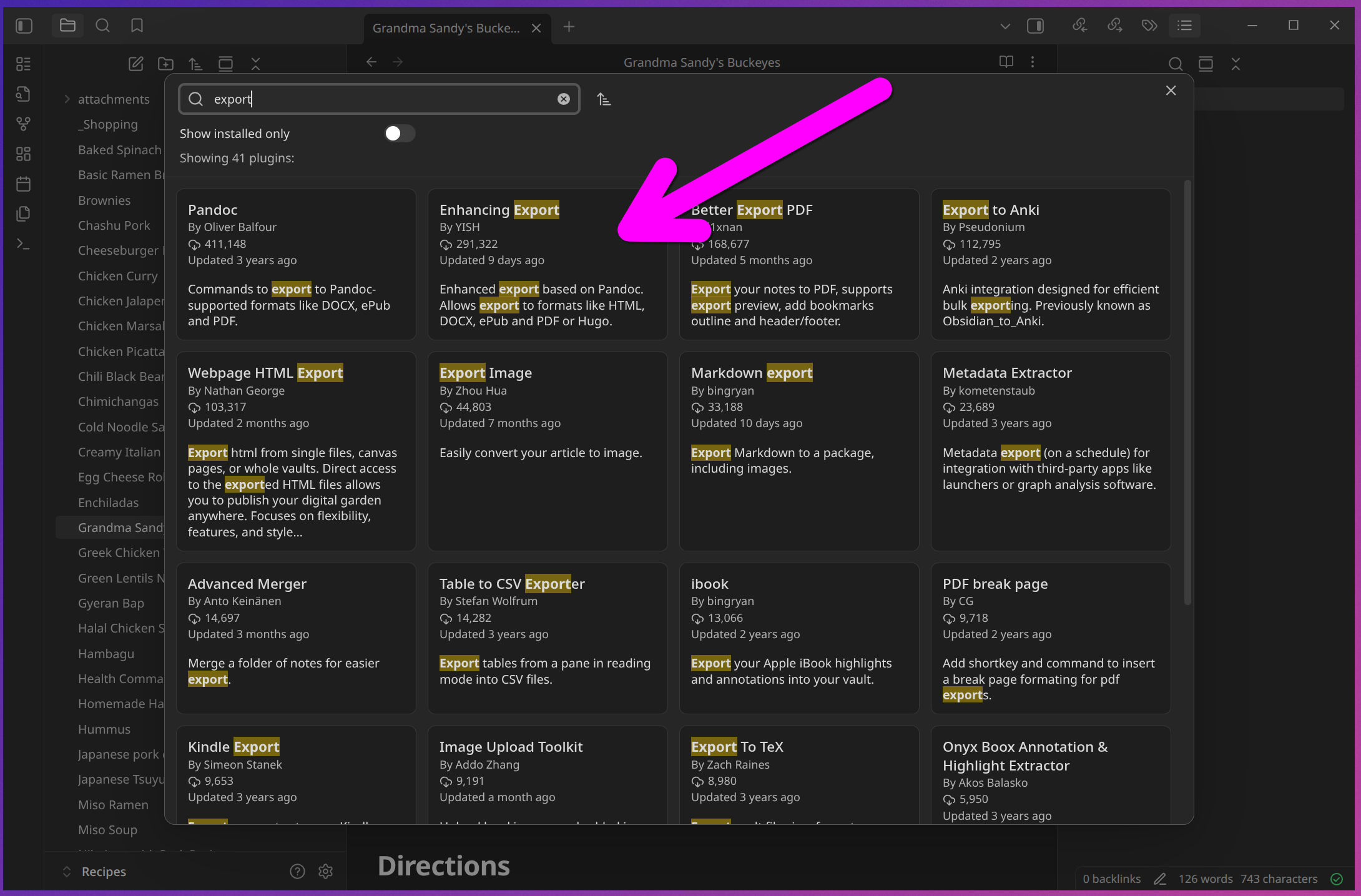
- We've found a few! The list is sorted by most downloaded. That's often a good sign, but in this case, notice that the first one on the list also hasn't been updated in 3 years, so it might not work well with newer versions of Obsidian. However the second one, Enhancing Export, was updated 9 days ago. That sounds great for us! Click on that one!
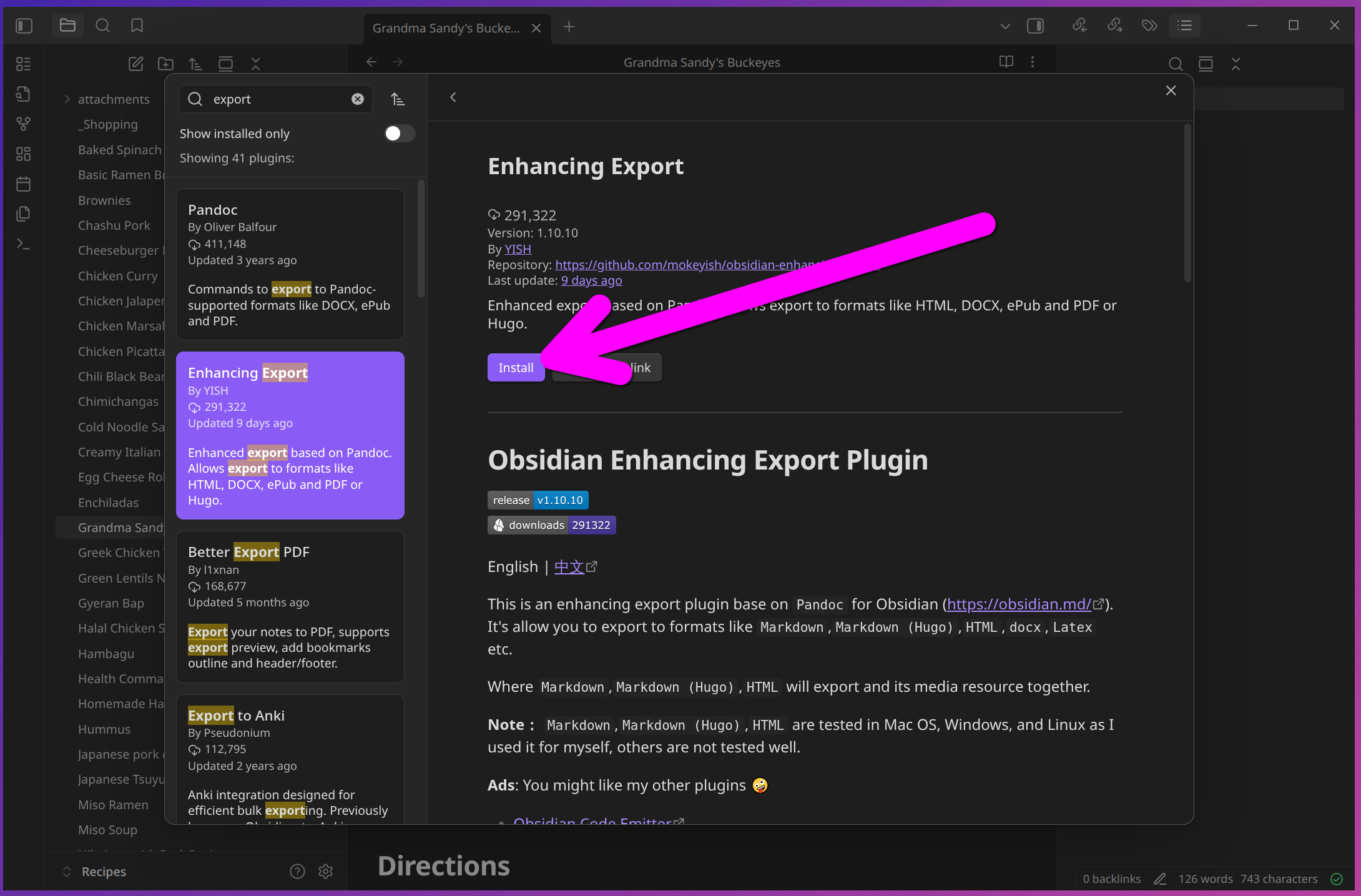
- Usually the plugin will have some instructions on how to use and/or configure it. Read those carefully and do what they say, or it may not work well. Although again, it won't mess up your actual writing or anything.
- Click Install.
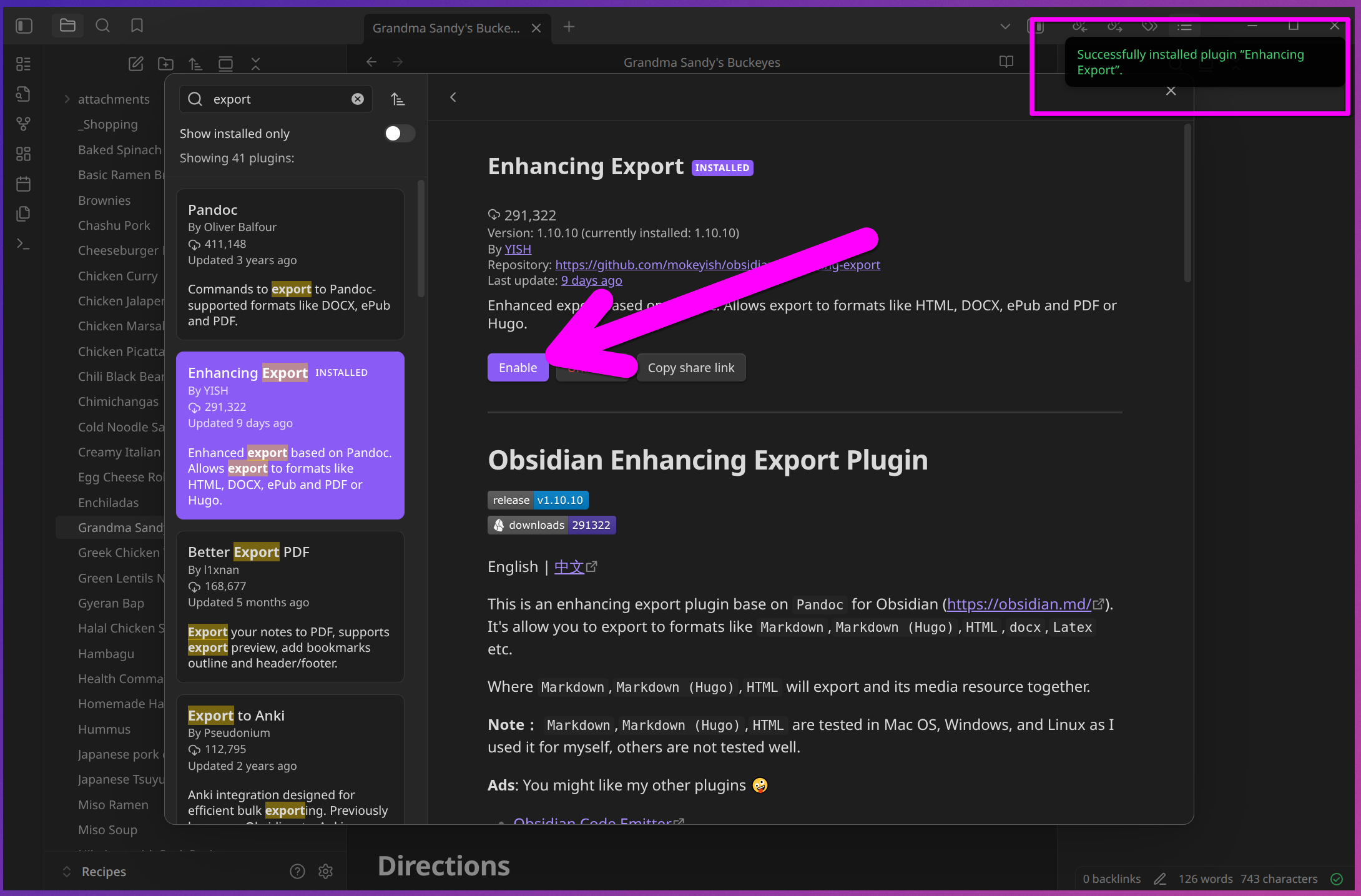
- Even once it's installed, it's not automatically switched on. To do that, you'll need to click Enable.
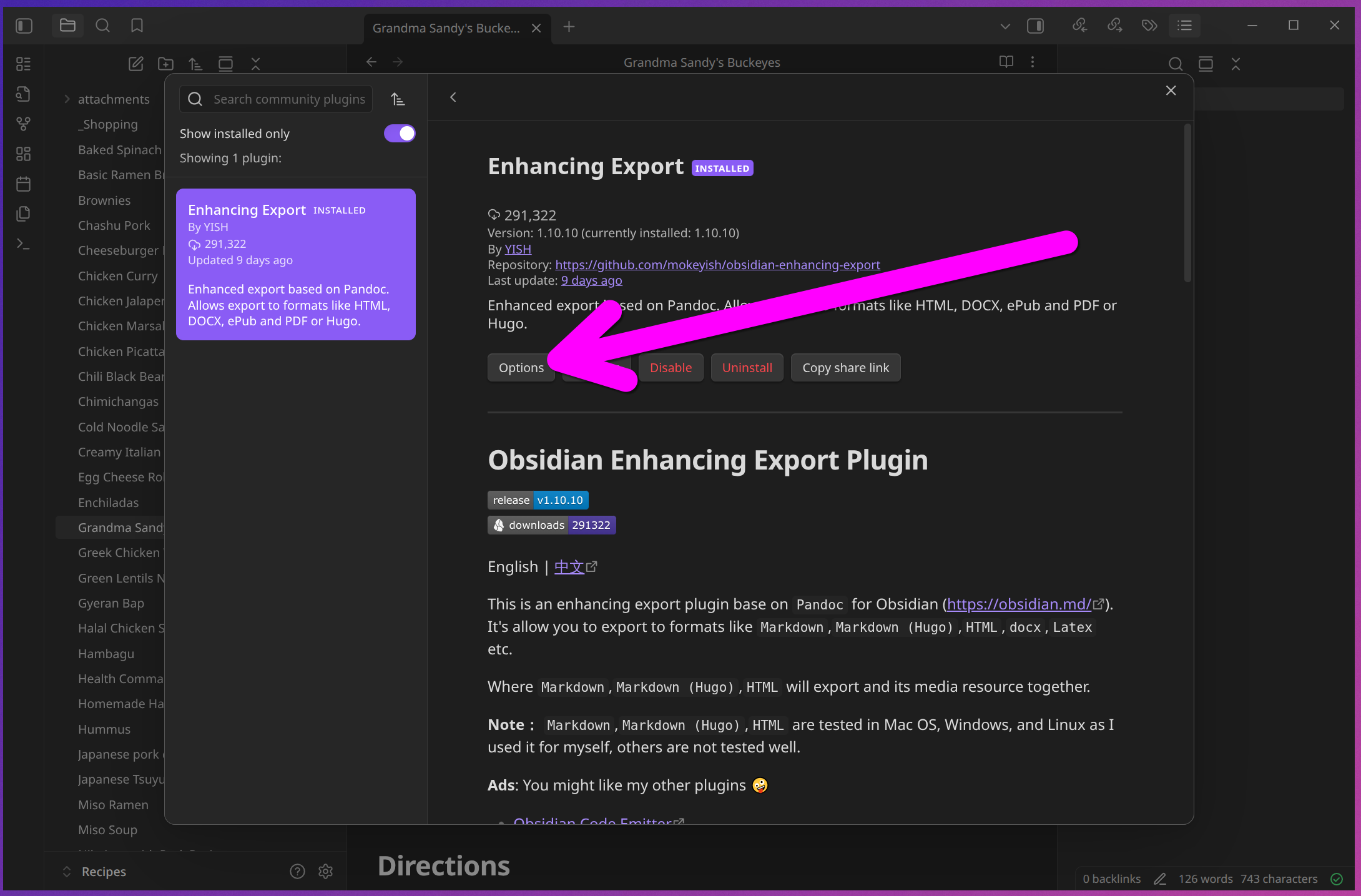
- Some plugins are extremely simple and work exactly the way you want as soon as you enable them. Some you may need or want to customize. To do that, click the Options button to be taken directly to the plugin settings menu.
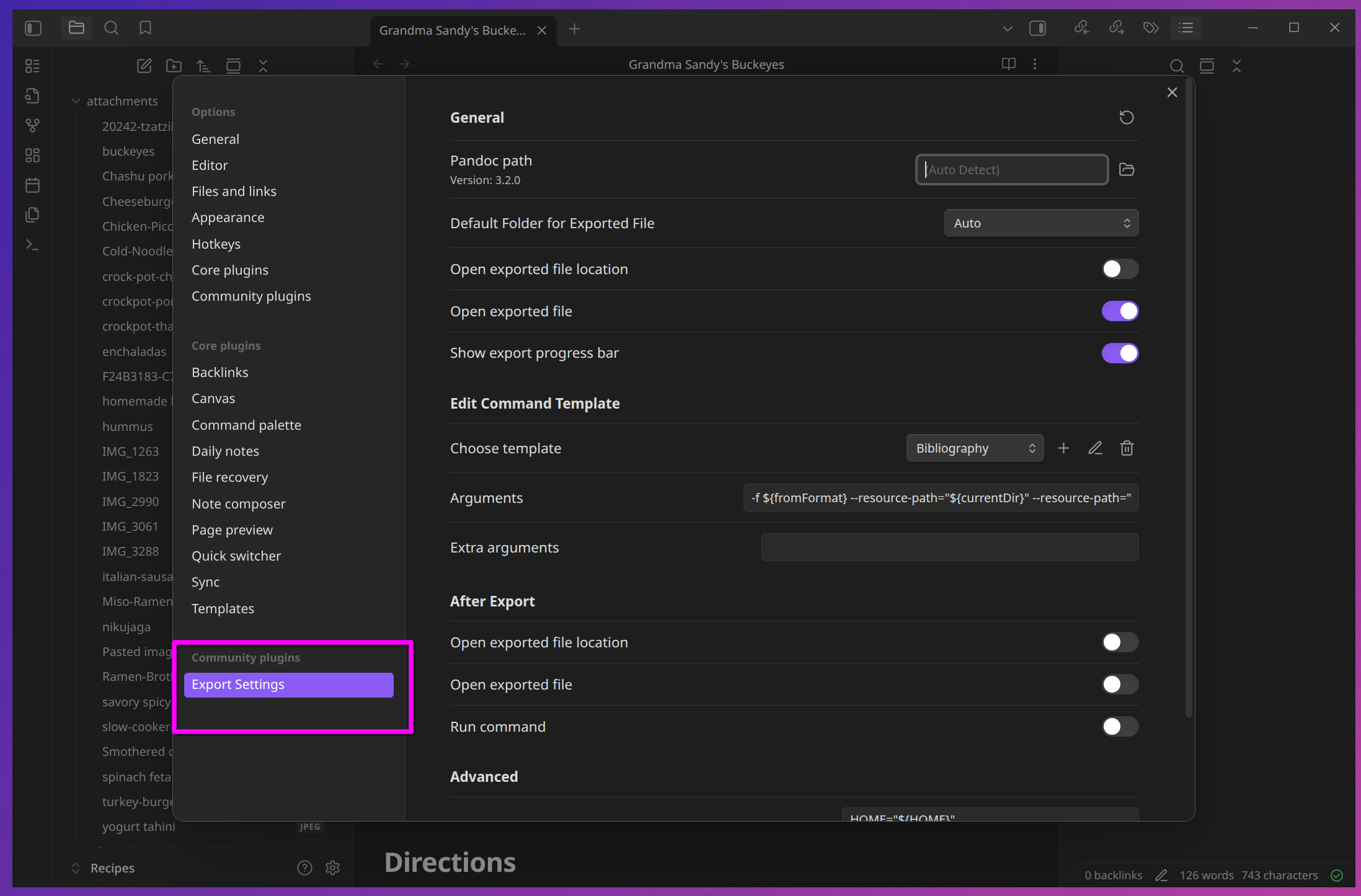
- Now that we've enabled and installed a plugin, we see a Community plugins section at the bottom in the sidebar of the settings interface. Click on one to view it's options. If you don't see it down there, it's not currently enabled.
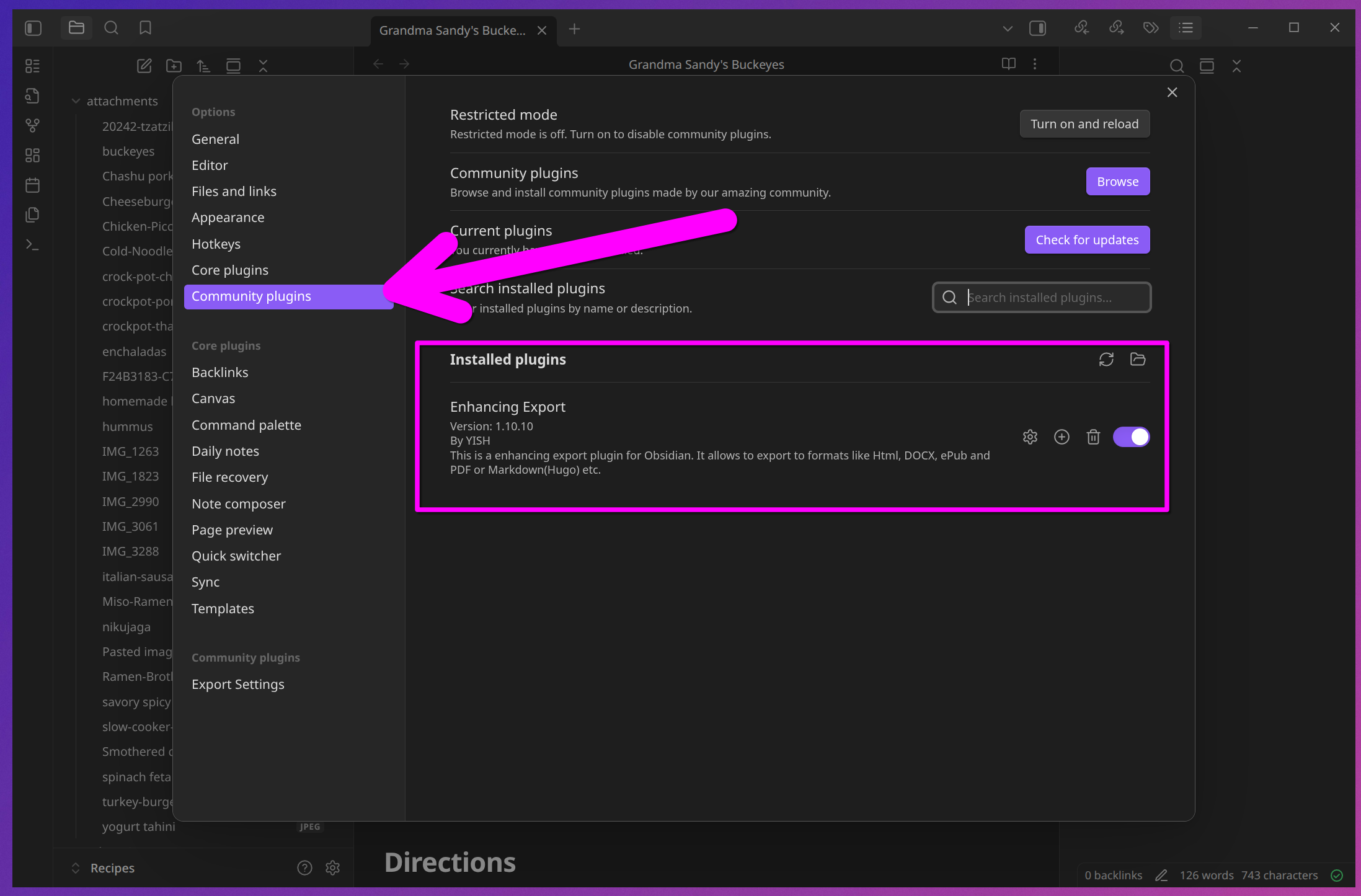
- To enable or disable a plugin, use the Community plugins option in the top section of the sidebar where we first turned them on. There you'll now see a list of all installed plugins, whether or not they're currently enabled. You can toggle them on and off, or click the trashcan icon to uninstall.
Turning plugins on or off doesn't affect the content of your files, but if you're using a plugin that changes how something looks, like the Kanban plugin, it won't look like that anymore until you turn it back on.
Some additional plugins that might interest writers:
- Better Word Count — if you really like keeping track of your output
- Calendar & Periodic Notes — two great plugins made by the same person that replaces Daily Notes with a lot of extra features, including the addition of weekly, monthly, and yearly notes.
- Enhanced Annotations — Mark up your manuscript for review using markdown. I use this when I know I need to come back to specific sections later. It's just a quick way to mark those spots and find them later.
- Typewriter Mode — Adds typewriter scrolling to the editor so the current active line is always in the center, and a focus option that can also dim or hide everything except the active paragraph.
- Longform — An impressive plugin designed to work like popular manuscript editing applications such as Scrivener or Ulysses. Honestly, those sorts of applications feel a little overwrought for my tastes, but I've tried it and if you prefer that sort of thing, this will likely please you.
Themes
Some people love the austere basic black or white of the default Obsidian theme, and that's great for them. Me? I like a little whimsy in my writing tool that reminds me that the creative act, no matter how serious the content, is an act of play. Nothing too eye-gouging I assure you. Like so:
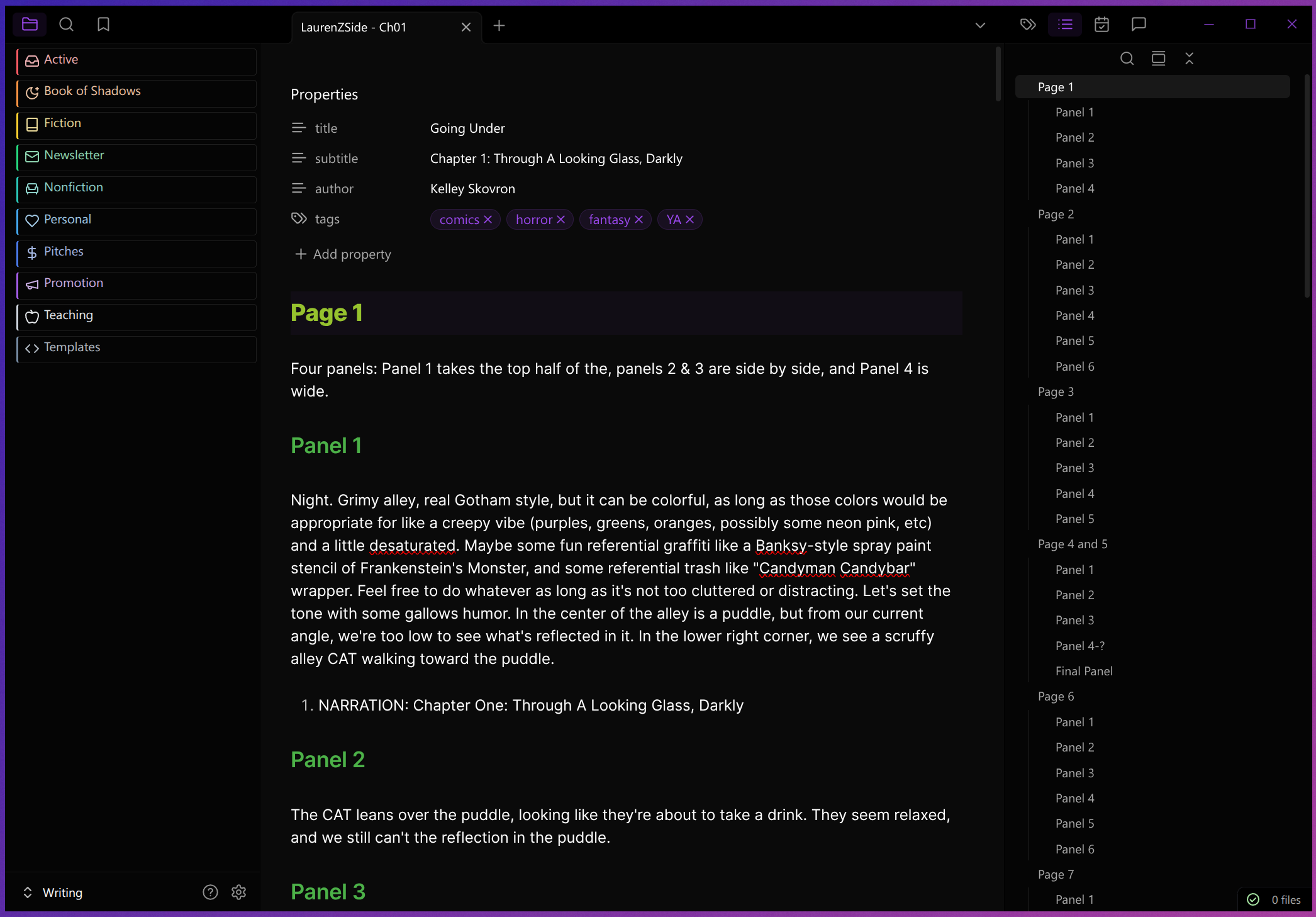
There are themes to suit any taste from minimal to baroque, all made by members of the community. And just like plugins, you can search for and install them!
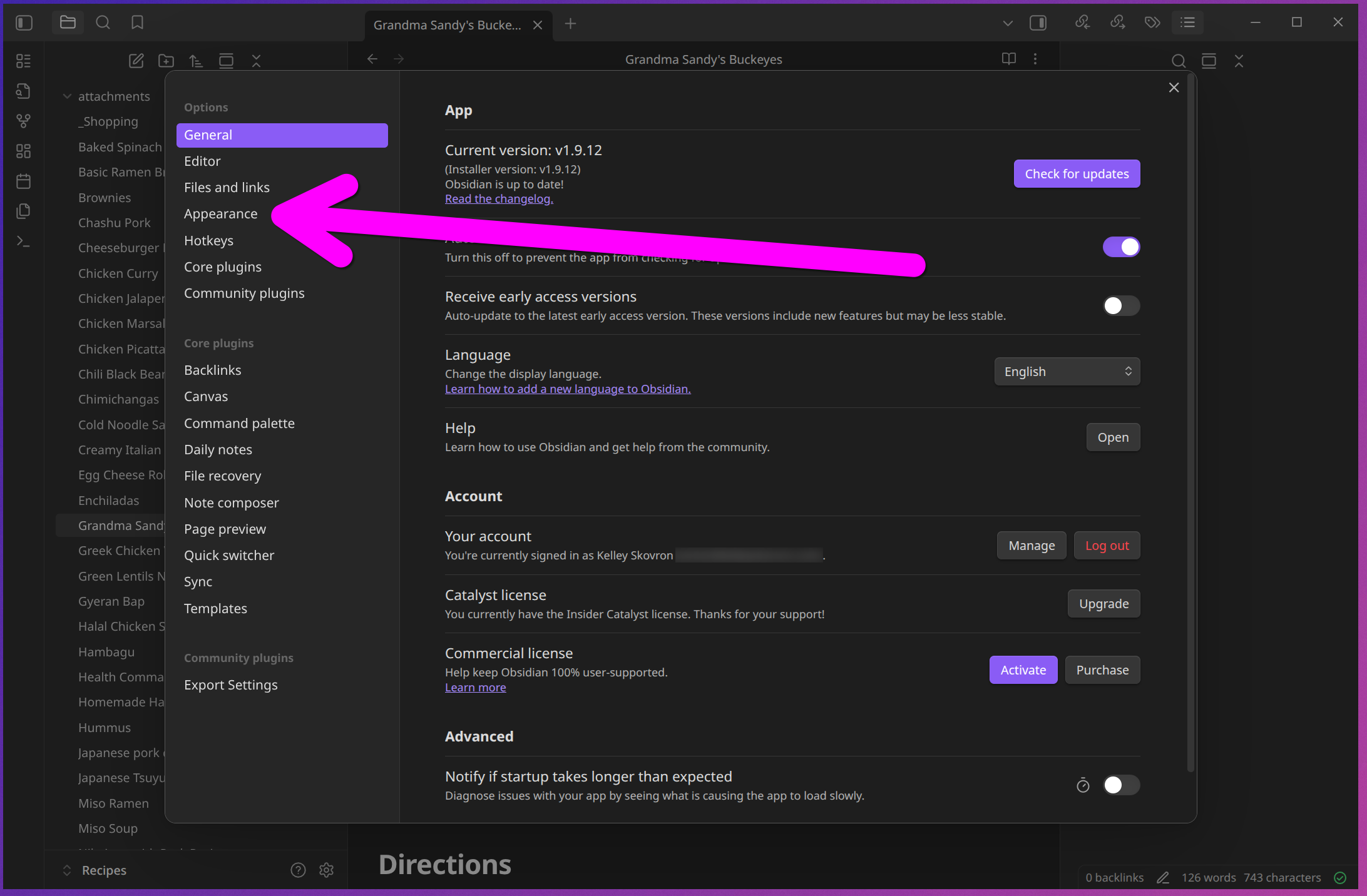
- On the settings interface, click the Appearance option.
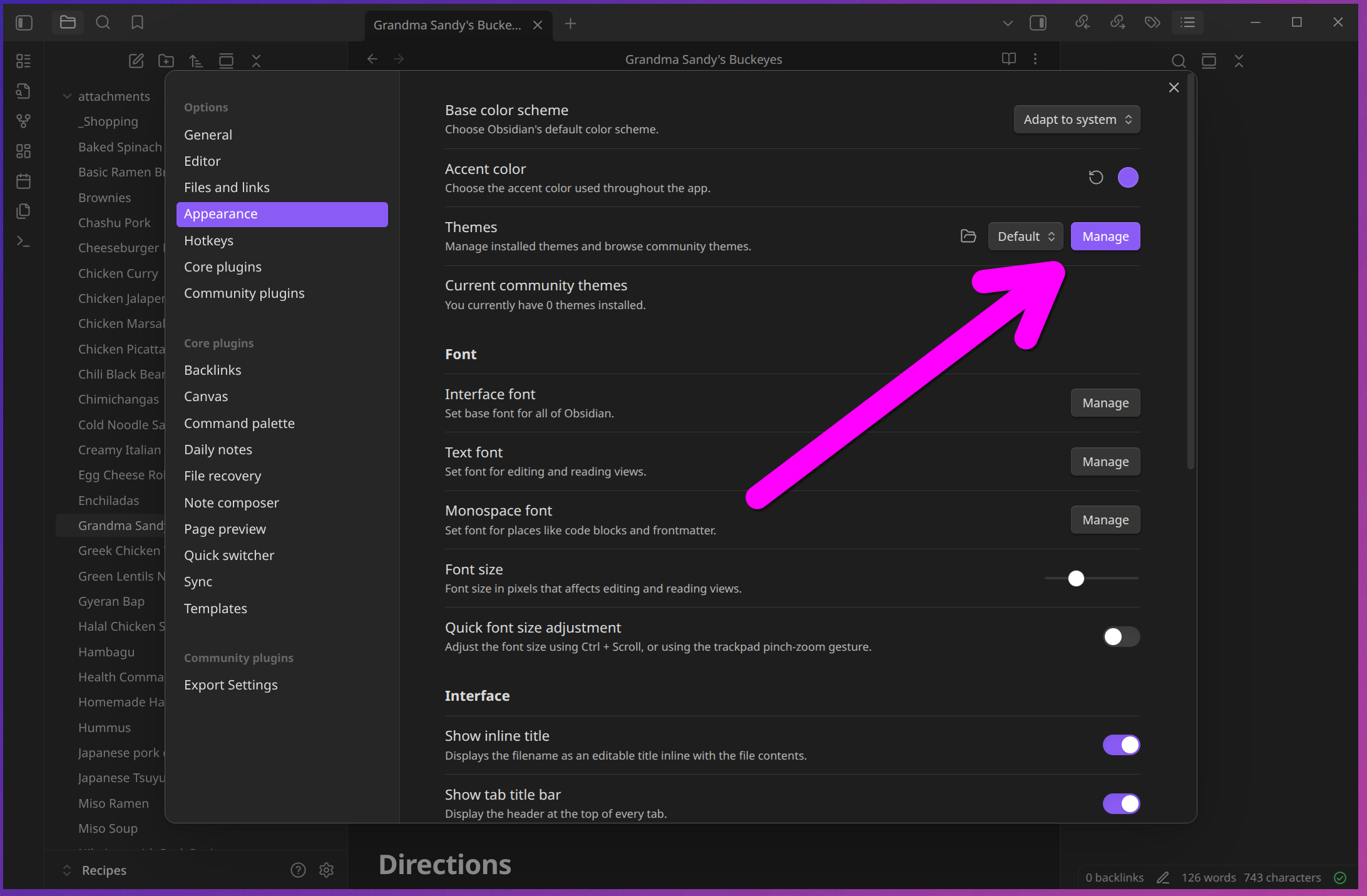
- Obsidian offers some basic tweaks to the interface. You can hide the ribbon, change the accent color, and a bunch of other stuff.
- To select a different theme that's already installed, select it from the Themes drop-down list.
- To install community-made themes, click Manage.
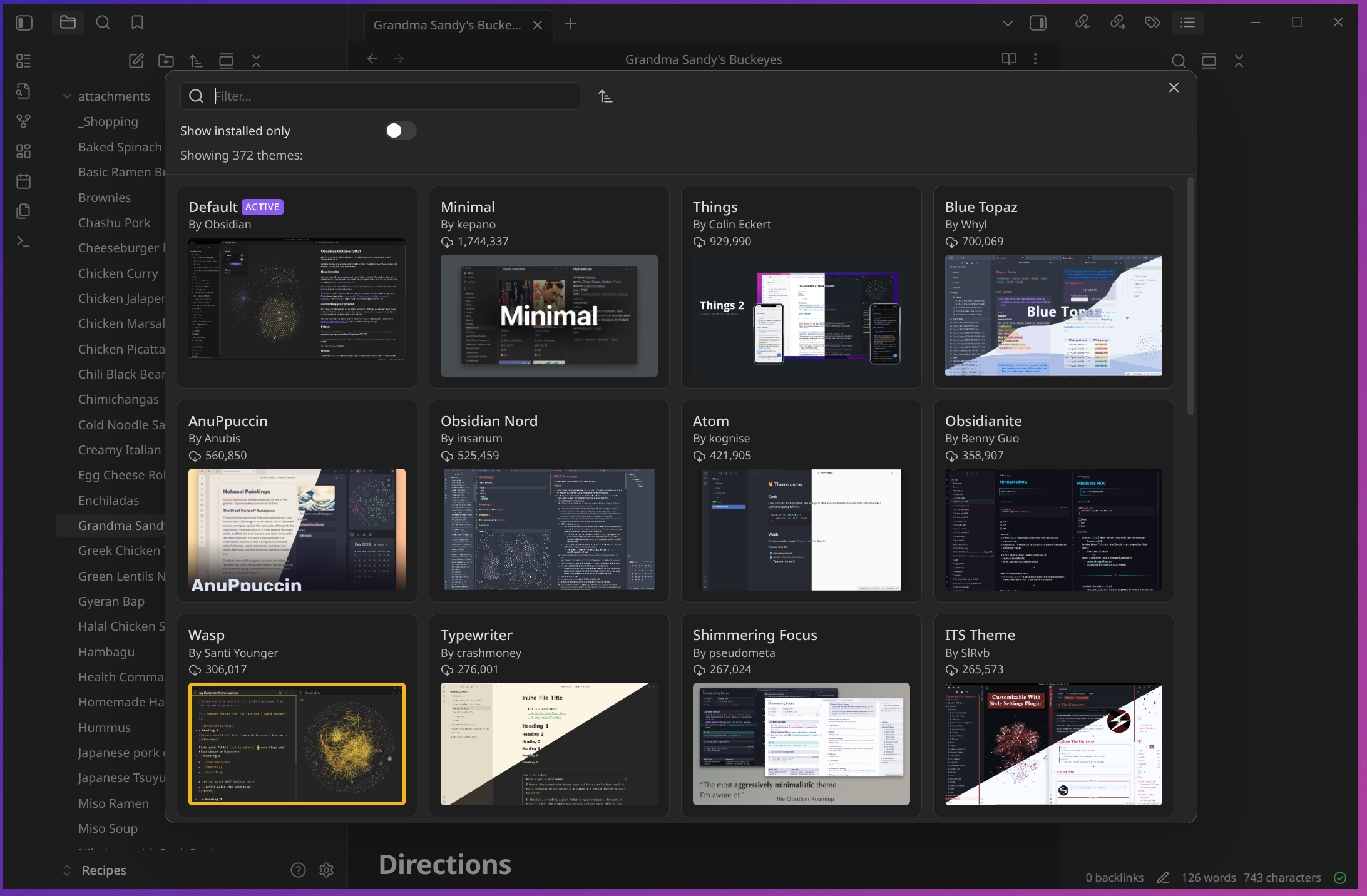
- Finding and installing themes works the same way as plugins. Remember that none of your content will change, so why not play around with some and see what feels best? I switch them around a lot. What you saw above is a customized Blue Topaz theme, but the one I always seem to come back to is AnuPpuccin by Anubis.
For Nerds
Okay, that was the absolute basics, and should get a humble word miner started. But I would be remiss if I didn't at least mention all the other nerdy stuff that I love. Like:
- Fully customizable keyboard shortcut list!
- Command palette if you don't like clicking icons!
- Task management plugins and reminders!
- Database views, automation, metadata, and so much more!!!!